Home Directories, Skeletons and Session Environments
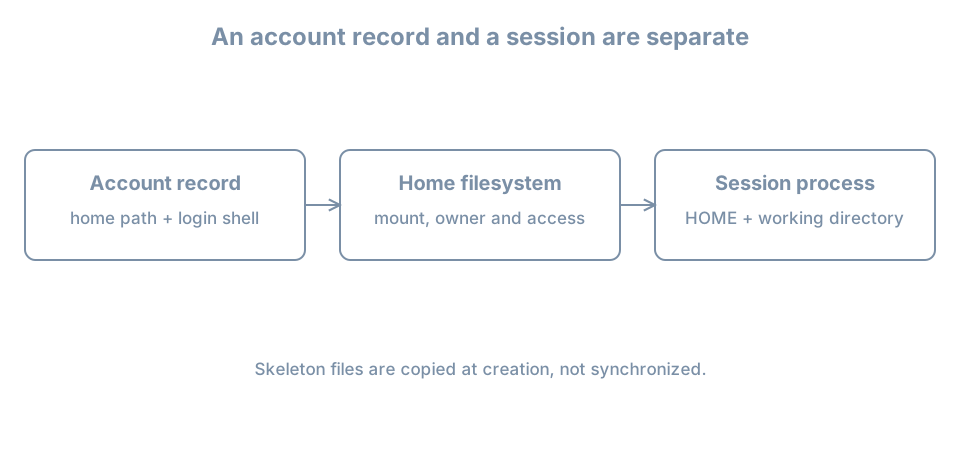
An account exists and its password is accepted, but the user lands in / with a warning that the home directory cannot be entered. Identity lookup, authentication and the session environment have succeeded or failed at different boundaries. The home path in an account record is an intention; the directory, its ownership, its mount and the process environment are separate observations.
Use the disposable bl04-accounts-lab clone from the previous chapter, with bl02 powered off and the clone on blpractice. Keep the learner console and administrative access. If the clone was retired, create a fresh full powered-off clone using the earlier single-disk, separate-NVRAM procedure. The guest hostname may still be bl02; verify the manager’s clone name and disk path.
A record, a directory and an environment
The account record contains a home path and login shell. On a conventional system, the home holds a user’s persistent files and personal configuration. Its location is not necessarily /home/NAME: it may be on another local filesystem or a network mount. $HOME is an environment variable inherited or set by session-starting software. It is not itself proof of the account record, a mounted filesystem or correct ownership.
Inspect the current session:
id
getent passwd "$(id -un)"
printf 'HOME=%s\nSHELL=%s\n' "$HOME" "$SHELL"
pwd
ls -ldn "$HOME"
findmnt --target "$HOME" --output TARGET,SOURCE,FSTYPE,OPTIONS
umask
pwd is the current working directory, which can differ from $HOME. $SHELL commonly identifies a configured or inherited shell, but does not prove which executable is running. A containing-filesystem query does not prove home is its own mount. Compare the numeric owner with id -u and consider parent directory traversal. The getent manual describes the effective identity lookup.
Avoid dumping the entire environment into shared notes: it may contain credentials, tokens, private paths or other sensitive values. A user’s shell startup files can also change variables after login; a non-login command or service can receive a different environment. This chapter inspects values rather than teaching a separate shell course.
Skeletons are initial copies
On Ubuntu, account-creation tools can populate a new home from a skeleton directory, commonly /etc/skel. These are initial copies, not a synchronization service: later changes to the skeleton do not automatically update existing users’ homes. Tool options, pre-existing destination paths and distribution configuration affect the result. The Ubuntu adduser manual describes its account-creation behavior; useradd has its own options and defaults.
Inspect the skeleton without changing it:
ls -la /etc/skel
getent passwd learner
A dot-prefixed name is ordinarily hidden by a plain ls. Do not copy private credentials into a shared skeleton, and do not assume a skeleton file has the right settings for every user. Existing home contents may have been customized since account creation.
Lab: create and inspect a fresh home
Use a new lab name blhome. Check each condition before creating anything:
getent passwd blhome
getent group blhome
test ! -e /home/blhome
Both lookups should return no record with status 2, and the home-path test must succeed. An existing name, path or lookup error means stop. Consider configured NSS sources too, as in the account-lifecycle chapter.
Create the local user and set a unique disposable password:
sudo useradd -m -U -s /bin/bash blhome && sudo passwd blhomeIf either step fails, inspect the partial state before retrying. Do not record the password in notes. Inspect the resulting account and directory:
getent passwd blhome
id blhome
sudo ls -ldn /home/blhome
sudo ls -la /home/blhome
sudo ls -la /etc/skel
Compare filenames and ownership; if a skeleton file is present in both places, compare a specific nonsecret file with sudo cmp /etc/skel/FILE /home/blhome/FILE after replacing FILE with the actual name. A comparison proves byte equality at that moment, not that the files remain synchronized.
Start a new session from the ordinary learner shell:
su - blhomeAfter authenticating, run id, pwd, printf '%s\n' "$HOME", and findmnt --target "$HOME". Confirm the account’s observed home and process credentials, then exit. The login shell may source startup files; output and exact environment vary with configuration.
Diagnose a missing or inaccessible home
Suppose authentication succeeds but the home is unavailable. Check the account’s actual home field with getent passwd, the mount containing that path with findmnt, and the directory plus parents with ls -ldn. Compare its numeric owner with the account’s UID. A missing network mount, a stale UID, denied traversal and a nonexistent directory require different remedies. Do not recursively chown a guessed path, recreate a mountpoint over hidden data, or broaden permissions for all users.
For a real migration, plan the copy method, numeric identities, ACLs, extended attributes, capacity, consistency and the old and new home paths. Verify a fresh login and data access before retirement of the original. Changing the account record alone does not copy files.
For lab cleanup, exit every blhome session, record the UID and home, and remove only the account record with sudo userdel blhome. The home remains for inspection; it may display a numeric owner. Retain it on this disposable clone until a deliberate cleanup. Do not reuse the UID while its files remain. The original learner account must continue to work.
Recall card
- Account home, mounted filesystem,
$HOMEand current working directory are distinct. - A skeleton supplies initial files; it does not update existing homes.
- Inspect numeric ownership and parent traversal before changing permissions.
- Test a new login session and preserve existing administrative access.