Mount, Automount and Swap Units
Most administrators never write a .mount file, yet every Ubuntu server is full of them. systemd turns each /etc/fstab line into a mount, automount or swap unit, and from then on that filesystem is a unit like any service. It has dependencies, a start job that can time out, and a failure that can stop the boot. This chapter covers that lifecycle: how fstab becomes units, which options change whether a missing disk delays boot or drops you to an emergency shell, how automounts defer the mount until first use, and how swap fits the same model. Partitioning, filesystems and fstab fields in depth belong to Part 09. Here the focus is how storage takes part in the service graph.
Three unit types, one naming rule
| Unit | Configures | Named after | Manual |
|---|---|---|---|
.mount |
a mounted filesystem (What=, Where=, Type=, Options=) |
the mount point | systemd.mount(5) |
.automount |
an autofs trigger at a mount point | the mount point, and must match a .mount of the same name |
systemd.automount(5) |
.swap |
a swap device or file (What=, Priority=, Options=) |
the device or file path | systemd.swap(5) |
The name isn’t a label you choose. It is the path, escaped: /home/lennart must be home-lennart.mount, and /dev/sda5 must be dev-sda5.swap. Slashes become dashes, so a literal dash in a path is escaped as \x2d. Use systemd-escape rather than guessing:
systemd-escape --path --suffix=mount /srv/lab-data # → srv-lab\x2ddata.mountsystemd refuses a mount unit whose name doesn’t match its Where=. This is the most common reason a hand-written mount unit “does nothing”.
systemd also creates mount units dynamically for everything already mounted, whoever mounted it, so systemctl list-units --type=mount shows /proc, /run and bind mounts too.
From fstab to units
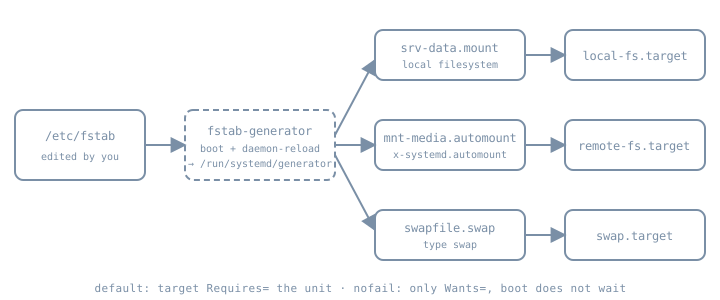
systemd-fstab-generator(8) is one of the generators from the drop-ins chapter. It runs early at boot and on every systemctl daemon-reload, and writes units under /run/systemd/generator/. Two consequences follow:
Editing fstab changes nothing until the generator runs again. util-linux
mountnotices and says so. This string is in themountbinary on the authoring box:mount: (hint) your fstab has been modified, but systemd still uses the old version; use 'systemctl daemon-reload' to reload.A native unit file in
/etcwins over fstab. If a mount point is defined both in fstab and in a unit file, the unit wins if it is in/etc/systemd/system/. fstab wins over a vendor unit under/usr/. Pick one place per filesystem. fstab is the boring default for local disks.
The generator also treats the fsck passno field as a simple yes/no, and ignores the ordering it used to encode. Checks run through systemd-fsck@.service instances.
Options that decide boot behaviour
These fstab options are documented in systemd.mount(5) and are read by the generator, not by the kernel:
| Option | Effect on the unit graph |
|---|---|
| (default) | local-fs.target (or remote-fs.target) Requires= the mount and is ordered after it. If the mount fails, the target fails, and boot ends in emergency.target. |
nofail |
The target only Wants= the mount and isn’t ordered after it. Boot continues without waiting, whether or not the mount succeeds. |
noauto |
Not pulled in by the target at all. Mount it on demand with systemctl start or mount. |
x-systemd.automount |
Creates an .automount unit, which the target pulls in instead. auto and noauto then have no effect. |
x-systemd.idle-timeout= |
The automount’s TimeoutIdleSec=: unmount after this long unused. |
x-systemd.device-timeout= |
How long to wait for the device to appear. Valid only in fstab, and ignored in a unit’s Options=. |
x-systemd.mount-timeout= |
How long the mount command itself may take (TimeoutSec= in a unit). |
x-systemd.requires=, x-systemd.after= |
Extra dependencies, for example on a unit that unlocks the device |
_netdev |
Treat as a network filesystem even if the type looks local, as with iSCSI: order after network-online.target and pull it in, and attach to remote-fs.target |
The “noncritical required mount” that broke the boot in the Part 03 recovery lab was exactly the default row: a data disk that was absent, with no nofail. On a server, ask of every non-root line: should the machine refuse to boot without this? For the root filesystem and anything your services cannot run without, the answer is yes, and the default is right. For removable, secondary or network storage, use nofail or x-systemd.automount. Then make the dependent service say what it needs (below), rather than relying on boot order.
Services that need a mount
Boot targets are a blunt tool. A service that writes to /srv/data should declare that directly:
# /etc/systemd/system/labapp.service.d/storage.conf
[Unit]
RequiresMountsFor=/srv/data
RequiresMountsFor= adds Requires= and After= on every mount unit needed to reach that path, including parents. If the data disk is nofail and missing, the machine still boots, and labapp fails visibly with a dependency error instead of silently writing into the empty directory underneath the mount point.
Automount: mount on first access
An automount unit makes the kernel’s autofs place a trigger at the mount point. The first process to touch the path blocks briefly while systemd starts the matching .mount. After TimeoutIdleSec= with nothing using it, systemd tries to unmount it again. This suits network shares and slow or rarely used disks:
nas.example.org:/export/media /mnt/media nfs _netdev,x-systemd.automount,x-systemd.idle-timeout=10min 0 0The boot doesn’t wait for the NAS. Only the process that accesses /mnt/media waits, and it gets an error if the mount fails. Prefer this to the NFS bg option. systemd.mount(5) notes that the generator must rewrite bg into x-systemd.mount-timeout=infinity,retry=10000 plus fg,nofail to make it fit job control, and suggests x-systemd.automount instead.
Swap units
Swap entries in fstab become .swap units pulled in by swap.target, or by remote-fs.target for network swap. A swapfile /swapfile becomes swapfile.swap. A device listed by UUID becomes a long escaped name under dev-disk-by\x2duuid-…, so list them rather than typing them:
systemctl list-units --type=swap
swapon --show
Priority= (fstab pri=) chooses between several swap areas. Higher is used first. Sizing swap and choosing between disk swap, zram and zswap is a memory question, covered in Part 07.
Check fstab before you reboot
findmnt --verify parses an fstab and checks each line against the running system: whether sources and targets exist, whether the filesystem type is supported, and which options are user-space options. It was run on the authoring box (util-linux 2.41.5) against this deliberately mixed lab file. None of these disks exist on that box, which is the point. Output is verbatim:
$ cat /tmp/fstab.lab
# lab fstab
UUID=0a1b2c3d-1111-2222-3333-444455556666 /srv/data ext4 defaults,nofail,x-systemd.device-timeout=10s 0 2
UUID=0a1b2c3d-1111-2222-3333-777788889999 /srv/archive ext4 noauto,x-systemd.automount,x-systemd.idle-timeout=5min 0 2
nas.example.org:/export/media /mnt/media nfs _netdev,x-systemd.automount 0 0
/swapfile none swap defaults,pri=10 0 0
/dev/sdz9 /broken ext9 defaults 0 2

$ findmnt --verify --tab-file /tmp/fstab.lab --verbose; echo "exit=$?"

0 parse errors, 4 errors, 7 warnings
/srv/data
   [E] unreachable on boot required target: No such file or directory
   [ ] userspace options: nofail,x-systemd.device-timeout=10s
   [E] unreachable on boot required source: UUID=0a1b2c3d-1111-2222-3333-444455556666
/srv/archive
   [W] unreachable target: No such file or directory
   [ ] userspace options: noauto,x-systemd.automount,x-systemd.idle-timeout=5min
   [W] unreachable: UUID=0a1b2c3d-1111-2222-3333-777788889999
/mnt/media
   [E] unreachable on boot required target: No such file or directory
   [ ] userspace options: _netdev,x-systemd.automount
   [ ] do not check nas.example.org:/export/media source (pseudo/net)
   [ ] do not check nas.example.org:/export/media FS type (pseudo/net)
none
   [W] unreachable source: /swapfile: No such file or directory
   [W] cannot detect on-disk filesystem type (No such file or directory)
/broken
   [E] unreachable on boot required target: No such file or directory
   [W] unreachable source: /dev/sdz9: No such file or directory
   [W] ext9 seems unsupported by the current kernel
   [W] cannot detect on-disk filesystem type (No such file or directory)
exit=1
Three lessons from that run:
- The typo is caught.
ext9and the missing/dev/sdz9on/brokenare the kind of mistake that ends inemergency.target. findmnt flags both without touching the system. - findmnt isn’t systemd. It downgraded the
noautoline to warnings, but still reported thenofailand automount lines as “on boot required” errors. It checks whether lines are reachable; it doesn’t model what the generator does withnofailorx-systemd.automount. Use it for typos and missing devices, and use the generated units to understand boot behaviour. - Its exit status is usable. A non-zero exit lets configuration management refuse to deploy a broken fstab.
Lab: a data mount that can’t stop the boot
Not run for this chapter. The authoring environment has no systemd and no mkfs/mkswap. The steps need root on the Ubuntu 26.04 bl06-service-lab clone used throughout Part 06, and were written from the manuals linked here. Only the findmnt --verify run above was actually run. Expected results are described in prose.
Make a disposable filesystem. Add a small second virtual disk to the clone (for example 1 GiB), then find it and format it:
lsblk -o NAME,SIZE,TYPE,MOUNTPOINTS
sudo mkfs.ext4 -L labdata /dev/vdb     # confirm the device name first
sudo blkid /dev/vdb                    # note the UUID
sudo mkdir -p /srv/data
Add it to fstab the boring way, by UUID, with
nofailand a short device timeout. Then verify, reload and look at what the generator wrote:echo 'UUID=<uuid> /srv/data ext4 defaults,nofail,x-systemd.device-timeout=10s 0 2' | sudo tee -a /etc/fstab sudo findmnt --verify sudo systemctl daemon-reload systemctl cat srv-data.mount # header shows /run/systemd/generator/srv-data.mount sudo systemctl start srv-data.mount && findmnt /srv/dataExpect
systemctl catto show a generated unit with a[Mount]section andWhat=/dev/disk/by-uuid/….Tie the lab service to it. Add the
RequiresMountsFor=/srv/datadrop-in shown above tolabapp.service, then rundaemon-reloadand restart the service.systemctl list-dependencies labapp.serviceshould now includesrv-data.mount.Remove the disk and reboot. With the VM off, detach the second disk, then boot. Expect the boot to finish after about the 10 s device timeout.
systemctl status srv-data.mountshould show it inactive, andlabappshould fail with a dependency error.journalctl -bshows the device job timing out.Contrast without
nofail. Removenofailfrom the line, reload, and reboot with the disk still absent. Expect the boot to wait for the device timeout and then stop inemergency.target. Recover as in Part 03: log in at the emergency shell, restorenofail(or comment out the line), runsystemctl daemon-reload, thensystemctl default.Convert to an automount. Replace
nofailwithx-systemd.automount,x-systemd.idle-timeout=2min, reattach the disk, reload, and reboot.systemctl list-units --type=automountshowssrv-data.automountactive, whilefindmnt /srv/datashows only theautofstrigger until something runsls /srv/data. After two idle minutes, the mount unit goes inactive again.Clean up. Remove the fstab line and the drop-in, run
daemon-reload, and detach the disk.
Diagnosis
| Symptom | Look at |
|---|---|
| Boot stops in emergency mode after a disk change | journalctl -xb for the failed .mount or dev-*.device job. Fix fstab (often missing nofail, a wrong UUID or a typo), then daemon-reload and systemctl default. |
| Boot pauses on “A start job is running for dev-disk-by…” | The device never appeared. Check the UUID with blkid, and set x-systemd.device-timeout= if the disk is optional. |
| fstab edit has no effect | You didn’t run systemctl daemon-reload, or a unit file in /etc overrides the line. Check with systemctl cat. |
| Service wrote into the empty mount point | Missing RequiresMountsFor=. Stop the service, move the stray files aside, mount the filesystem, and add the dependency. |
Shell hangs on cd into a network share |
An automount is waiting for the server. Check systemctl status <name>.mount and x-systemd.mount-timeout=. |
| Hand-written mount unit is refused | The unit name doesn’t match Where=. Regenerate it with systemd-escape --path --suffix=mount. |
Practice
- For each non-root line in a server’s fstab, write down whether the server should refuse to boot without it, and set
nofailor the default to match. - Use
systemd-escapeto predict the unit names for/var/lib/my-appand/mnt/backup 2026, then confirm them withsystemctl list-units --type=mountafter mounting. - Add
findmnt --verifyto the lab’s configuration check, and confirm that a deliberately misspelt filesystem type makes it fail.
Recall card
- Who creates mount units from fstab, and when does it run?
- What does
nofailchange in the dependency graph? - Why is
RequiresMountsFor=better than relying on boot order? - What happens at boot, and on first access, with
x-systemd.automount? - Why does
findmnt --verifystill report anofailline as an error?
Sources
- systemd.mount(5): naming, implicit dependencies, fstab options, precedence
- systemd.automount(5):
TimeoutIdleSec=, naming - systemd.swap(5): naming,
swap.target - systemd-fstab-generator(8)
- systemd.unit(5):
RequiresMountsFor= - systemd-escape(1)
- findmnt(8):
--verify